
Before you start
- WordPress listed in Installatron My Applications.
- A separate protected destination and enough storage.
Restoration can replace files and database content. Preserve orders created after the backup before intervening on a live store.
Distinguish a clone, backup and restoration
A clone lets you test changes at a different address. A backup preserves an earlier state of the files and database. Restoration replaces an existing state with a backup. These are different operations, particularly for a store receiving new orders.
- The tools described depend on the options available in your Installatron account.
- Check available storage: clones and their backups consume additional space.
- If a button is absent, ask for the account to be checked rather than assuming the feature is enabled.
Prepare a separate destination
Sign in to DirectAdmin and prepare a subdomain or folder for testing. Check HTTPS and access restrictions. A clone can contain personal information; search-engine discouragement alone does not prevent access.
- Use a different address from the live site, such as test.example.ca.
- Preserve a source-site backup before starting.
- Clearly identify the live website and test copy to avoid editing the wrong one.
Create the copy in Installatron
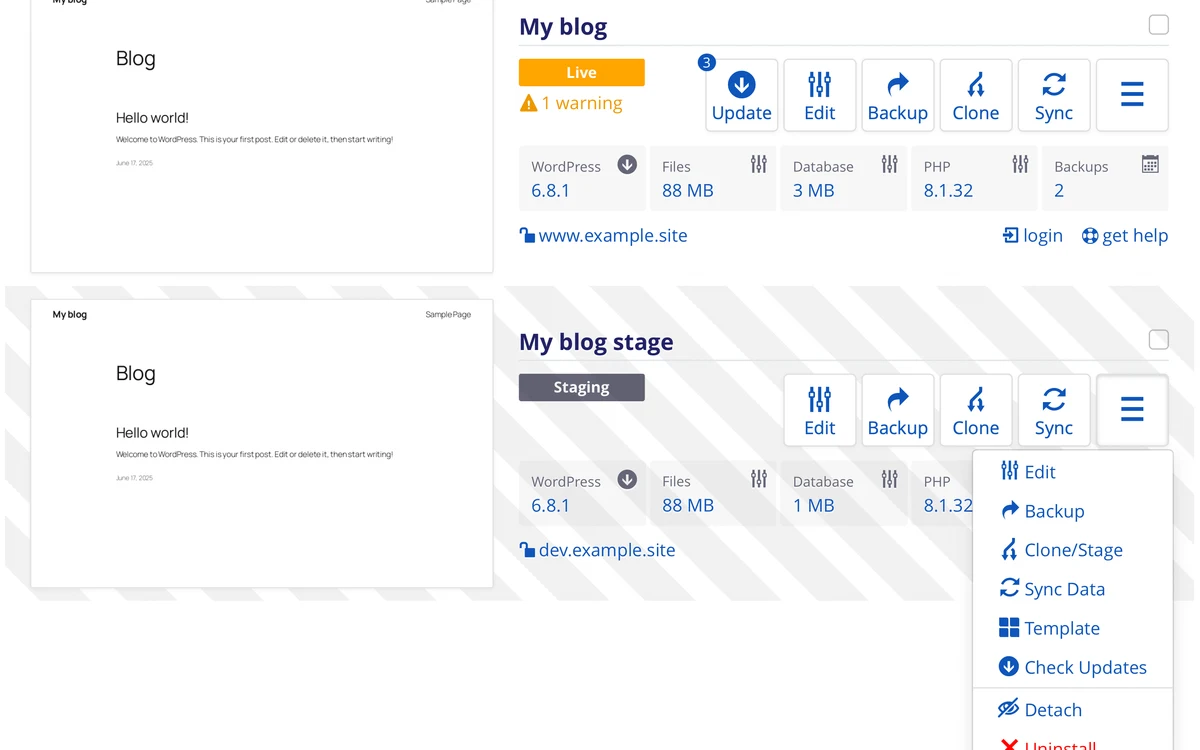
Open Installatron, then My Applications. Select the relevant WordPress installation and use Clone if available. Review the destination and offered settings before confirming: a mistaken domain or folder can affect an existing website.
- Choose the intended test domain and directory; an empty directory usually means that domain's root.
- Wait for completion, then open the clone's website and dashboard.
- Check images, links and functions that depend on the website address.
Isolate external services before testing
A clone may retain live payment credentials, integrations and email settings. Before testing a store, prevent customer emails, subscription activity and real external actions. Confirm a gateway's test mode within its own settings.
- Explicitly verify that payments use test credentials.
- Prevent real subscription renewals and synchronization.
- Do not place orders using real card details on a poorly isolated clone.
Restore a backup to the correct location
Under My Backups, choose a backup by date and installation. Use Restore if available. Select a test destination first when you want to inspect its contents. Restoration to the original location can overwrite files and data.
- Back up the current state before replacing a live website.
- Compare the backup date with more recent orders, users and published content.
- For an active store, arrange a strategy to preserve recent transactions before a full restoration.
Apply only the required changes
After testing, do not automatically copy the clone's entire database over your live store. It lacks orders received since cloning. Deploying a theme or setting requires a method appropriate to that change.
- Document approved changes and back up the live site before intervention.
- Check forms, login, cart and checkout afterwards.
- Keep the protected clone only as long as needed, then remove it using the appropriate procedure.
Frequently asked questions
Can I copy my whole test site over my store?
Not without checking data. An older copy lacks recent orders. Deployment must preserve those transactions and match the changes being made.
Official documentation
Labels and options vary with versions, plugins and your account. Refer to publisher documentation for your configuration.